
- Log into the Absolute Hosting Windows Control Panel
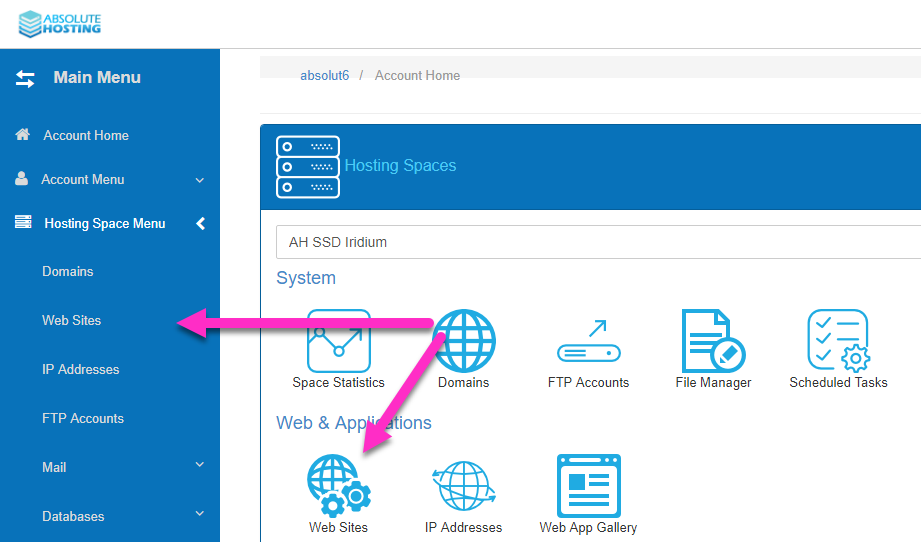
- Expand Hosting Space Menu and click on to Web Sites or click on the Websites Icon on the home page
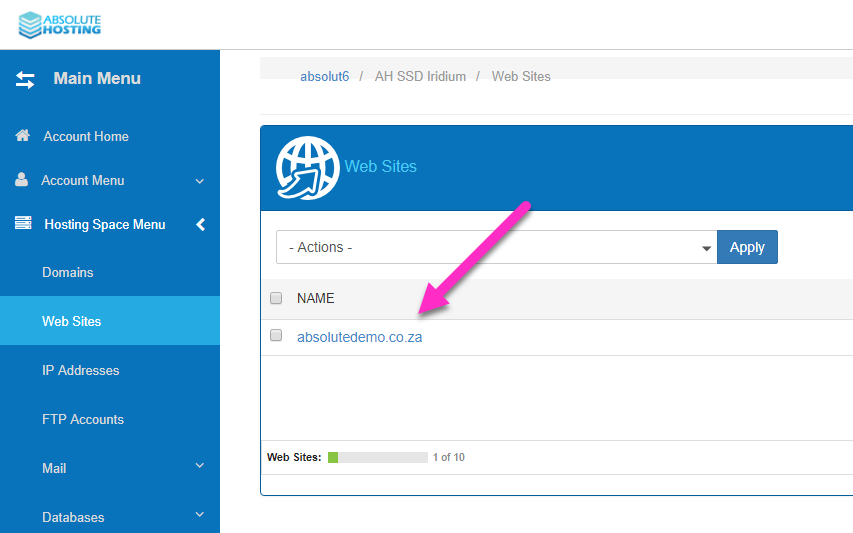
- On the Websites page, click the website you wish to set permissions for
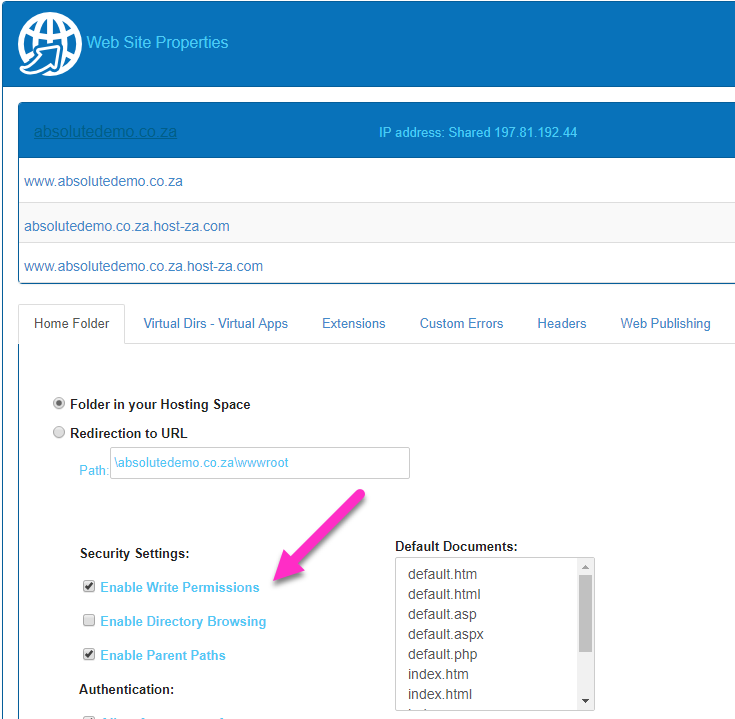
- On the Website Properties page, under Security settings, select Enable Write Permissions and click Save Changes

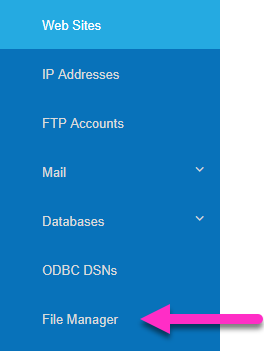
- Click Hosting Space Menu > File Manager
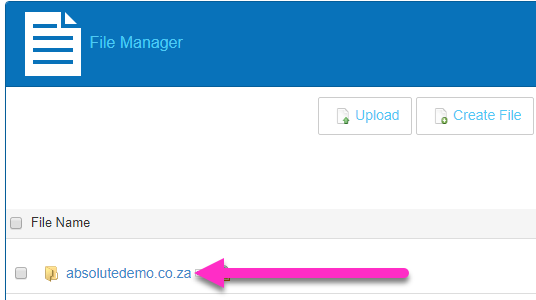
- On the File Manager page, click on your domain name to expand the folders on the web server
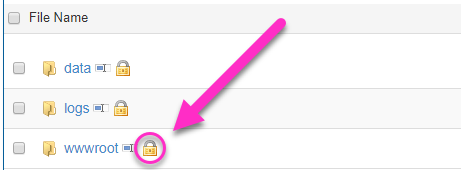
- Click the Padlock icon to the right of your wwwroot folder (or any folder within the wwwroot)
- On the File/Folder Permissions pop-up, select write permissions for the Network Service & your website user
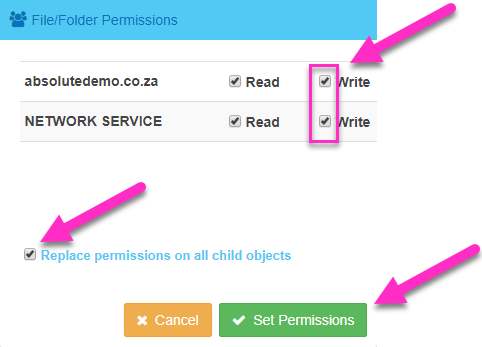
- Select Replace permissions on all child objects and click Set Permissions
How to set website write permissions using the Windows Hosting Control Panel.