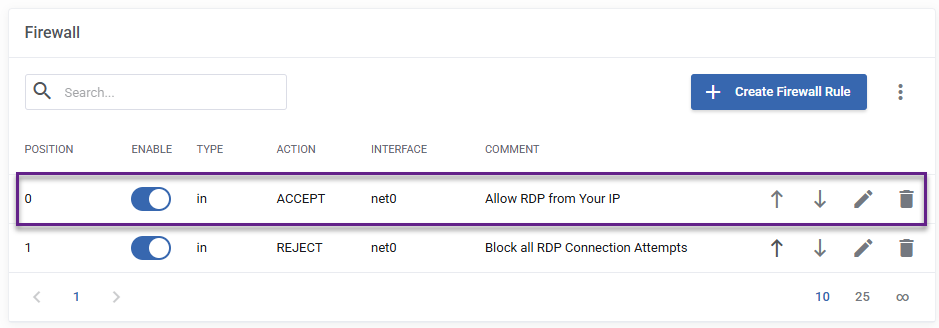
This guide will assist with creating two firewall rules to restrict access to RDP.
The first rule of thumb is to not expose RDP to the internet.
Log into the client service area and navigate to services > Your Windows VPS Server
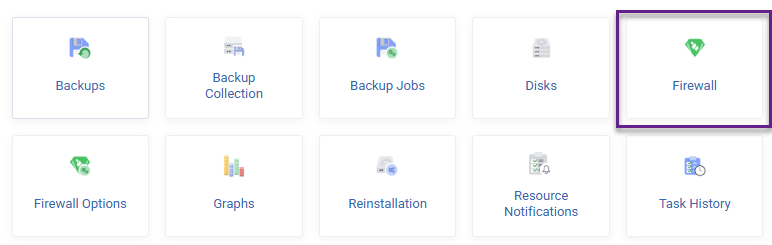
On the Product Details page for your Windows VPS click the Firewall icon
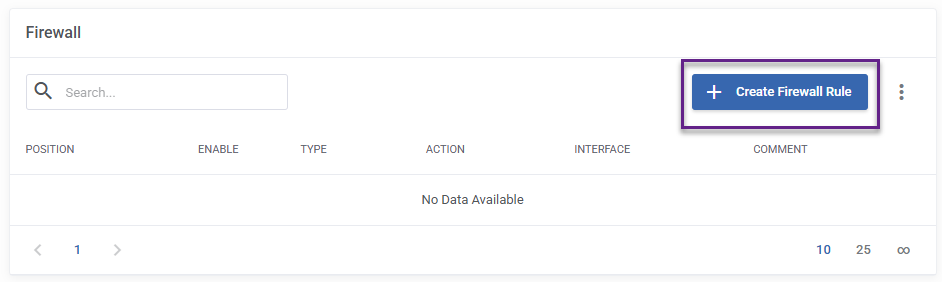
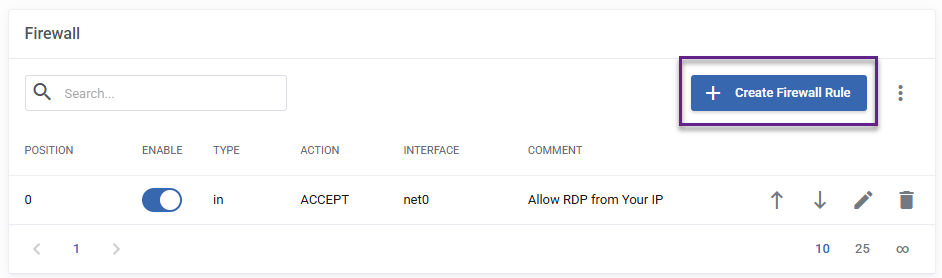
On the Firewall page, click the Create Firewall Rule button
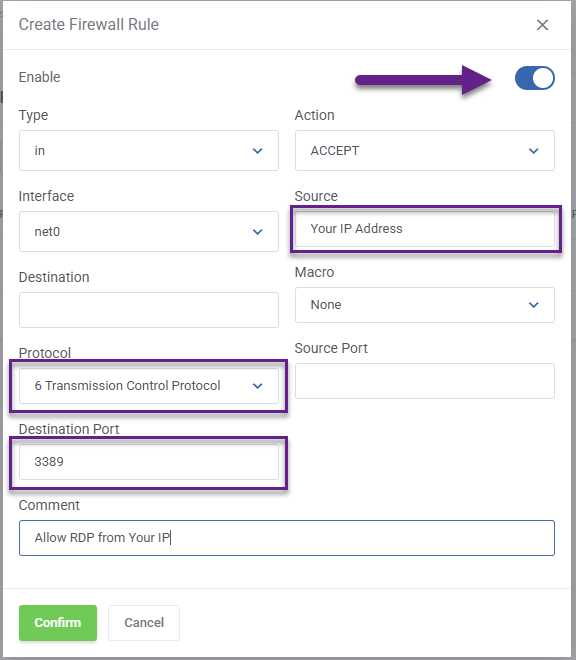
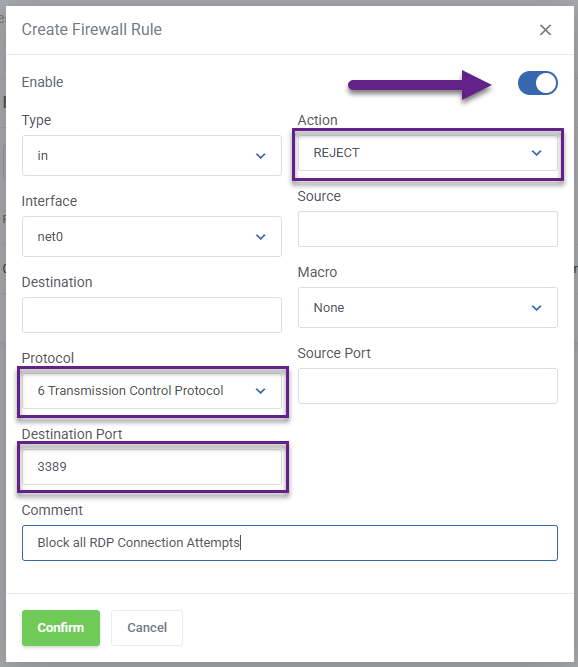
On the Create Firewall Rule pop up modal, create your firewall rule as per below - replacing Your IP Address with your actual IP address
Pay attention to all highlighted options below and click Confirm
You've now created a firewall rule to allow RDP from your IP, now click the Create Firewall Rule button again
Now create a firewall rule that rejects connections to your server on port 3389 and click Confirm.
Pay attention to the order of the firewall rules, as your rule to allow your IP to connect to the server must exist above the reject rule.
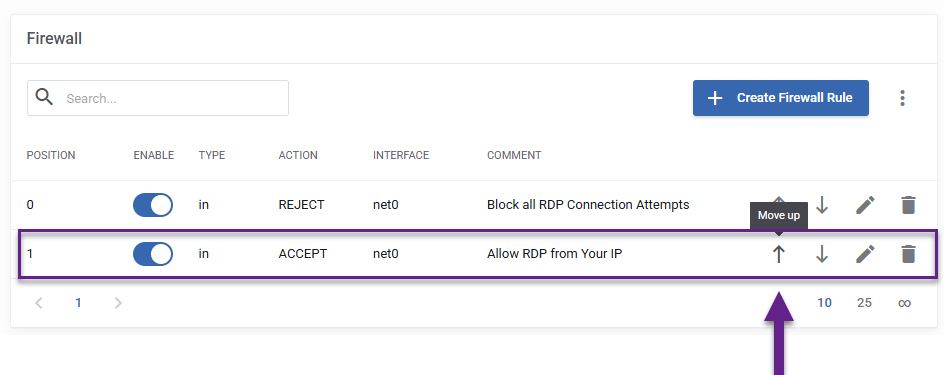
Change the order of the firewall rules to ensure that your allow rule exists before the reject firewall rule.