This guide will walk you through the steps to change your spam settings for your Smarter Business Email Hosting account.
Modifying your spam scoring affects what action is performed against an email according to its spam scoring.
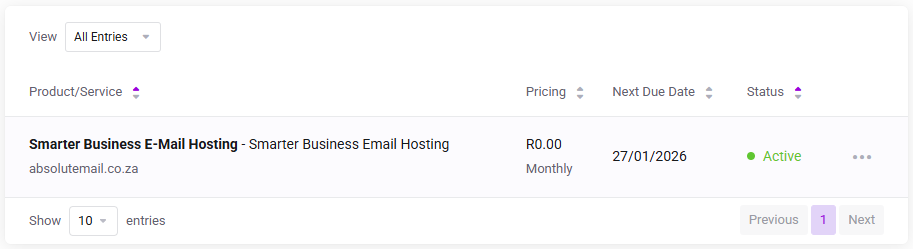
Log in to the client service area and navigate to My Products & Services page.
Click on the Smarter Business Email Hosting Service that you need to administer.
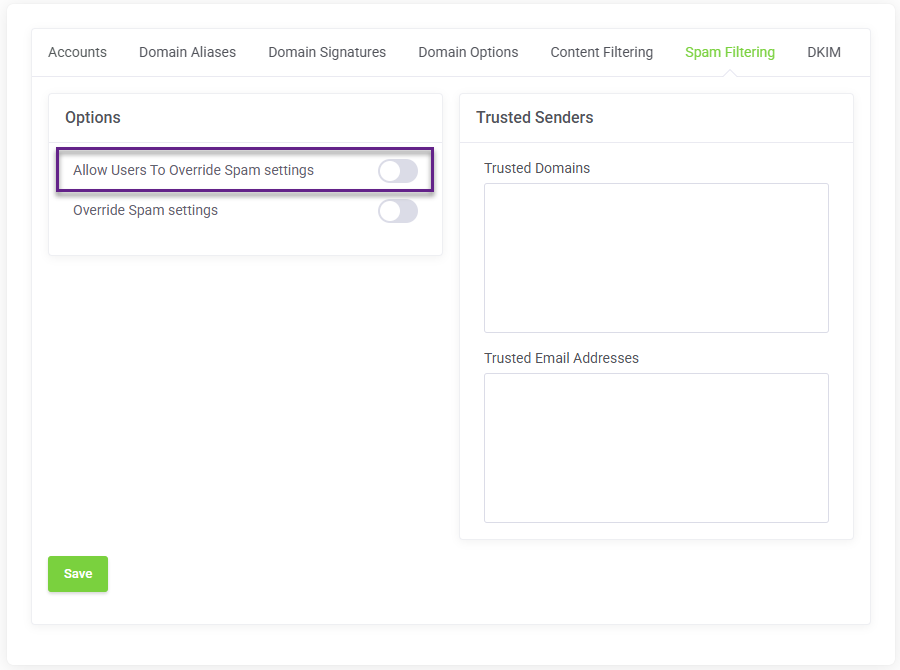
On the Service Management page, click the Spam Filtering tab and enable Allow Users To Override Spam settings and click Save
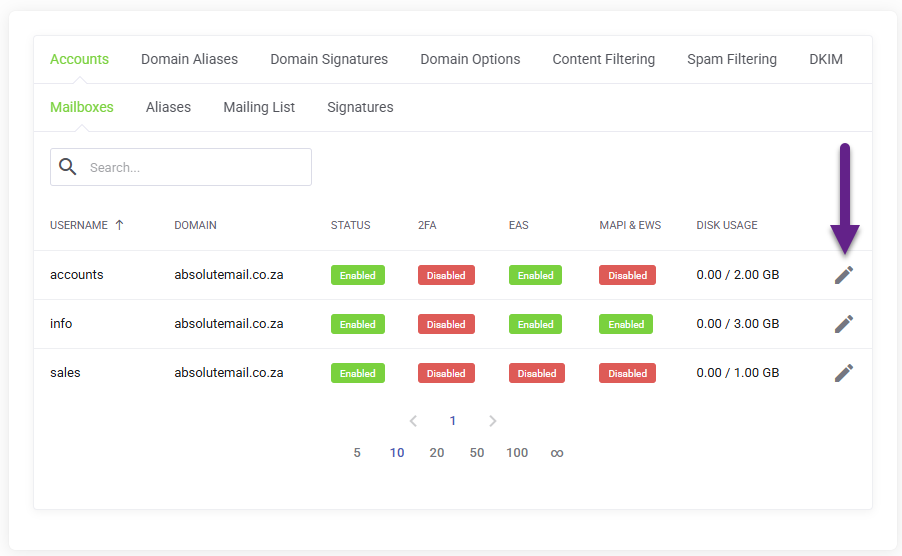
Navigate back to the Accounts tab and click the Edit icon for the email account you wish to administer.
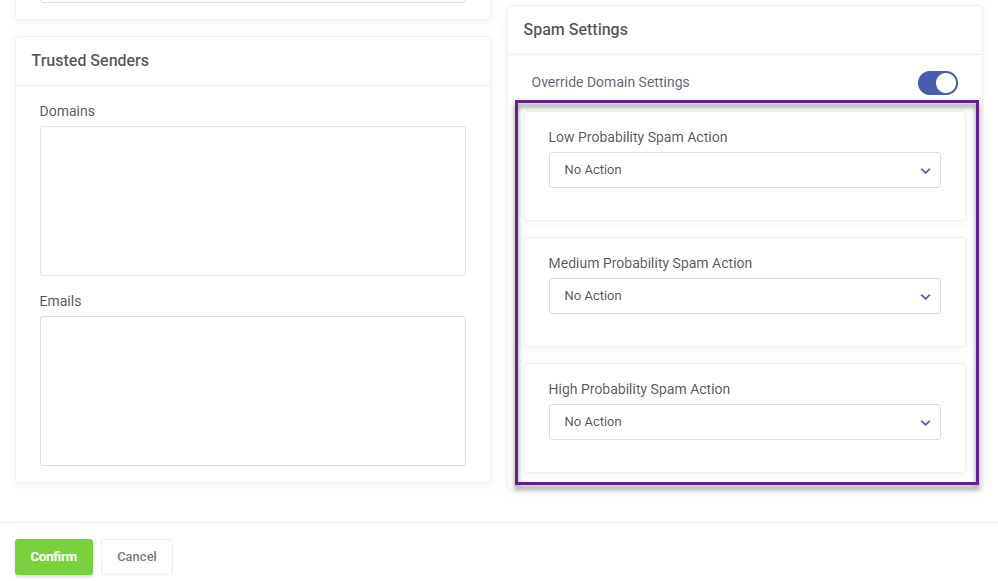
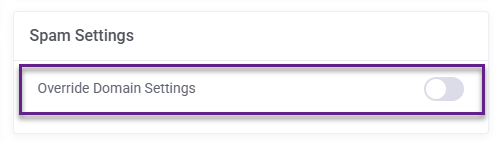
On the account administration pop up modal locate the Spam Settings section and click to enable Override Domain Settings.
Now select the desired action for each spam scoring level and click Confirm.