
This guide will walk you through the steps to upgrade or downgrade mailbox disk space for your Smarter Business Email Hosting account.
During the upgrade and downgrade process, you can accomplish both upgrades and downgrades during the same time.
Any downgrades will result in a credit being automatically processed, and upgrades will generate a pro-rata invoice which when paid complete the upgrade process.
Log in to the client service area and navigate to My Products & Services page.
Click on the Smarter Business Email Hosting Service that you need to administer.
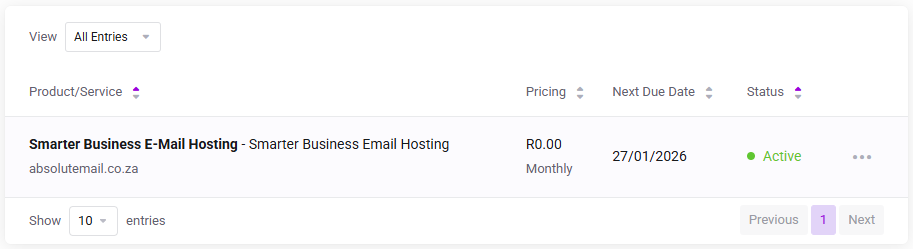
On the Service Management page, click the Upgrade/Downgrade Options link.

On the Upgrade/Downgrade page pay attention the instructions below
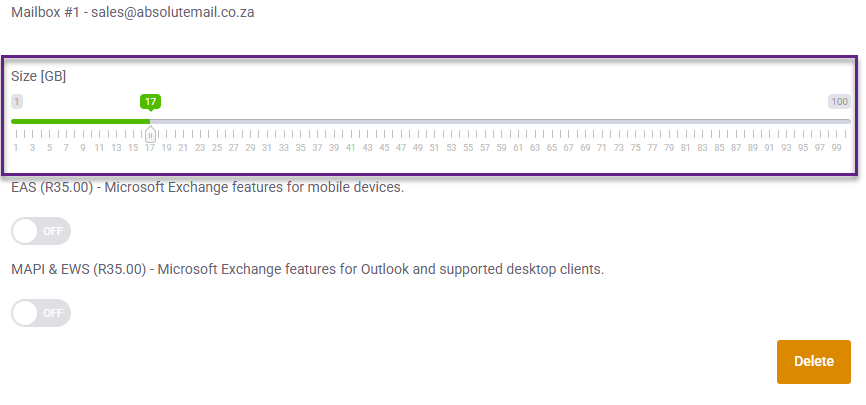
Use the slider and slide the mailbox size to the right for each account you want to upgrade storage for and repeat for each account.
To downgrade disk storage use the slider and slide the mailbox size to the left for each account you want to downgrade storage for.

Upgrading from 1GB Storage to 17GB Storage
Now scroll to the bottom of the Upgrade/Downgrade page and click the Click to Continue button to complete your upgrades and downgrades.